TULIP BLINDS ONLINE ORDERING SYSTEM
- Visit TulipBlinds.com and click on the "TRADE PORTAL" Drop-down Button on the Top Banner.
-
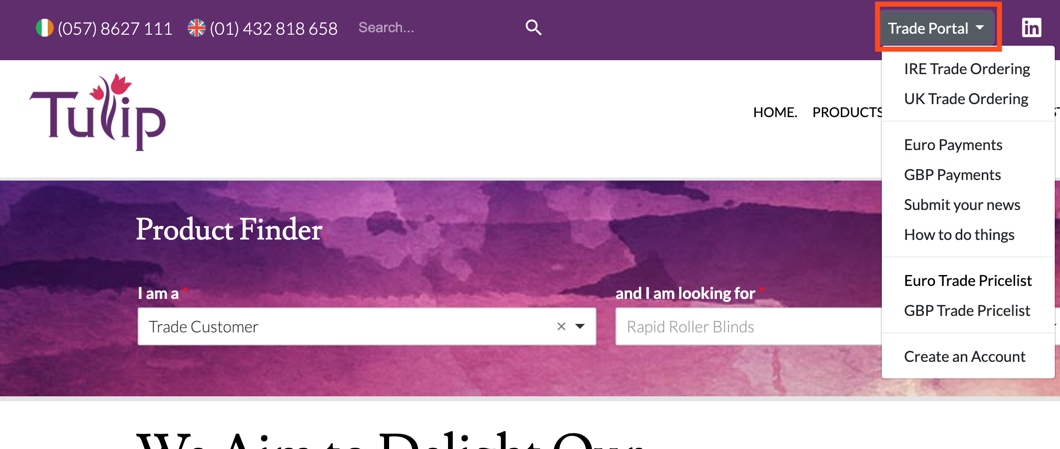
- - If you are an Irish/EU Customer: Choose "IRE Trade Ordering" from the Drop-down List. (1)
- If you are a UK Customer: Choose "UK Trade Ordering" from the Drop-down List. (2)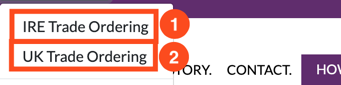
- You will then be presented with either your IRE/EU or UK Online Portal Login Screen.
|
Enter your P-Number (E.G. P1234) under |
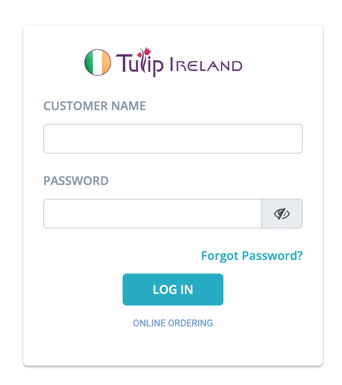 Irish / EU Customers:
 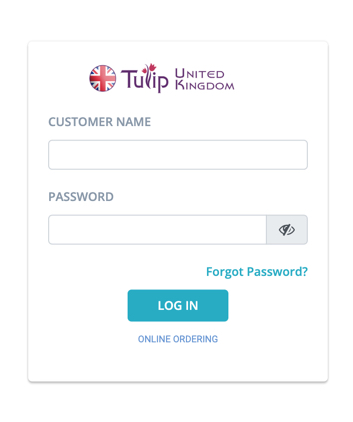 UK Customers:
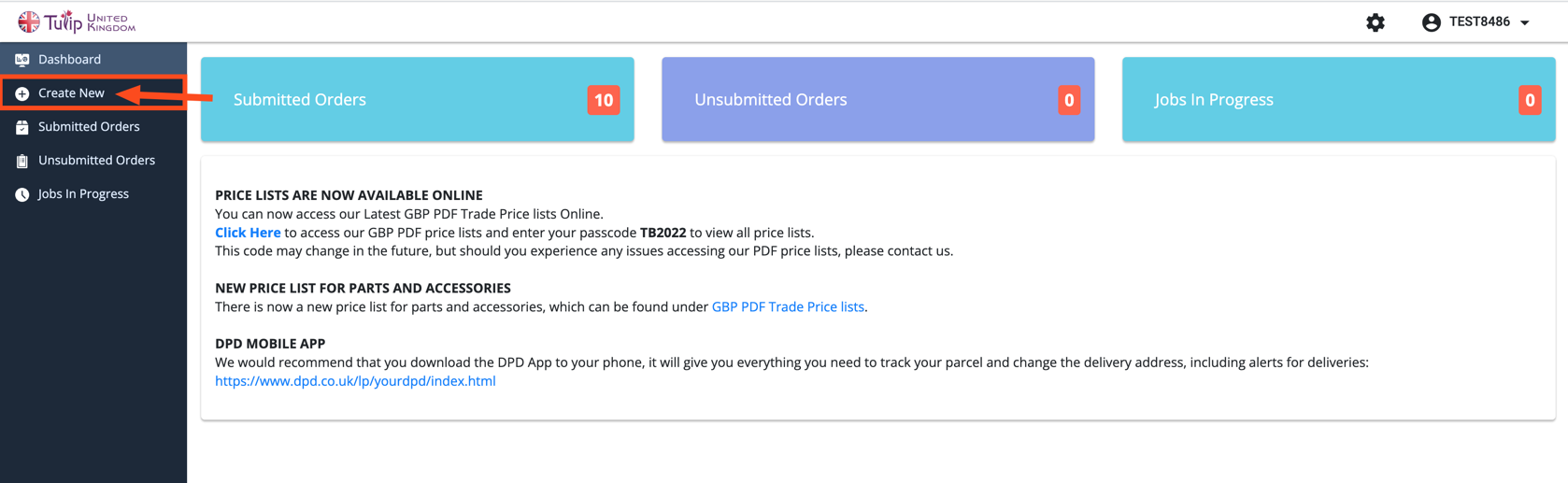
4. Once you Login, you will be presented with a screen something like this. (The following screenshots show the UK trade ordering portal to illustrate the steps but its the same process on our Irish / EU trade ordering portal). To place an order, choose "Create New" from the menu on the left.
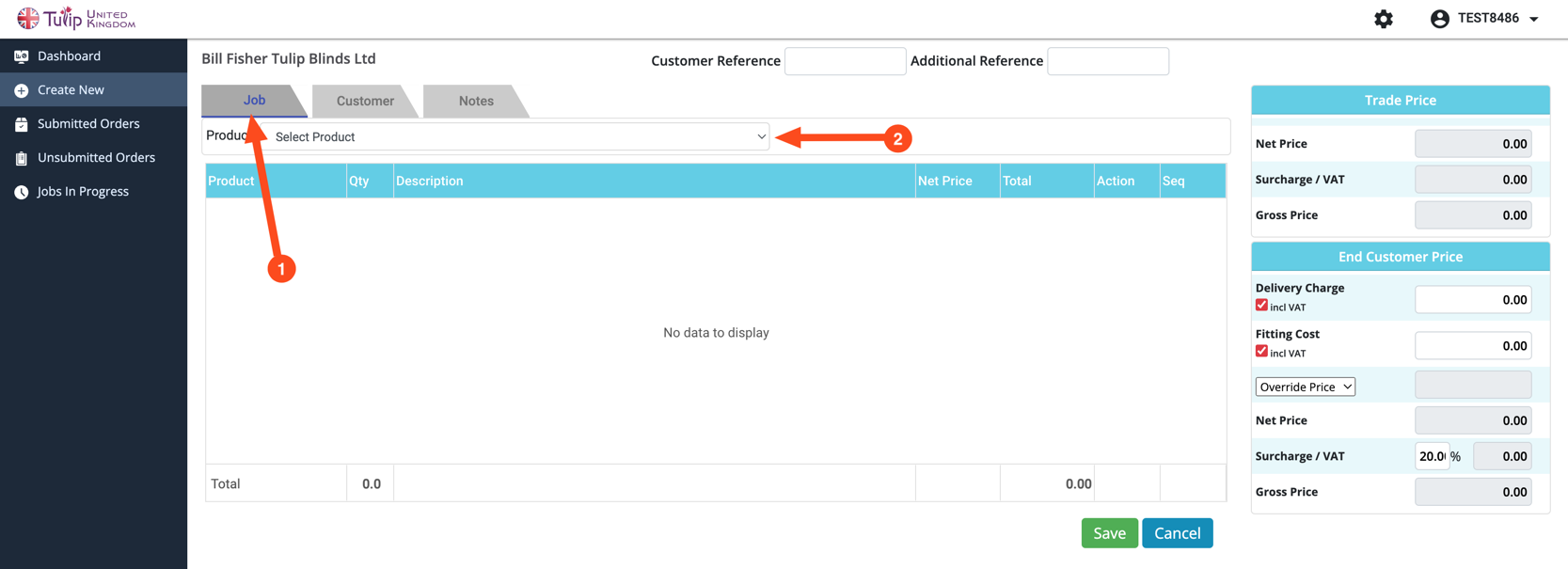
5. Click on the Job Tab (1) (if not already selected) and choose the product you wish to order from the dropdown (2)
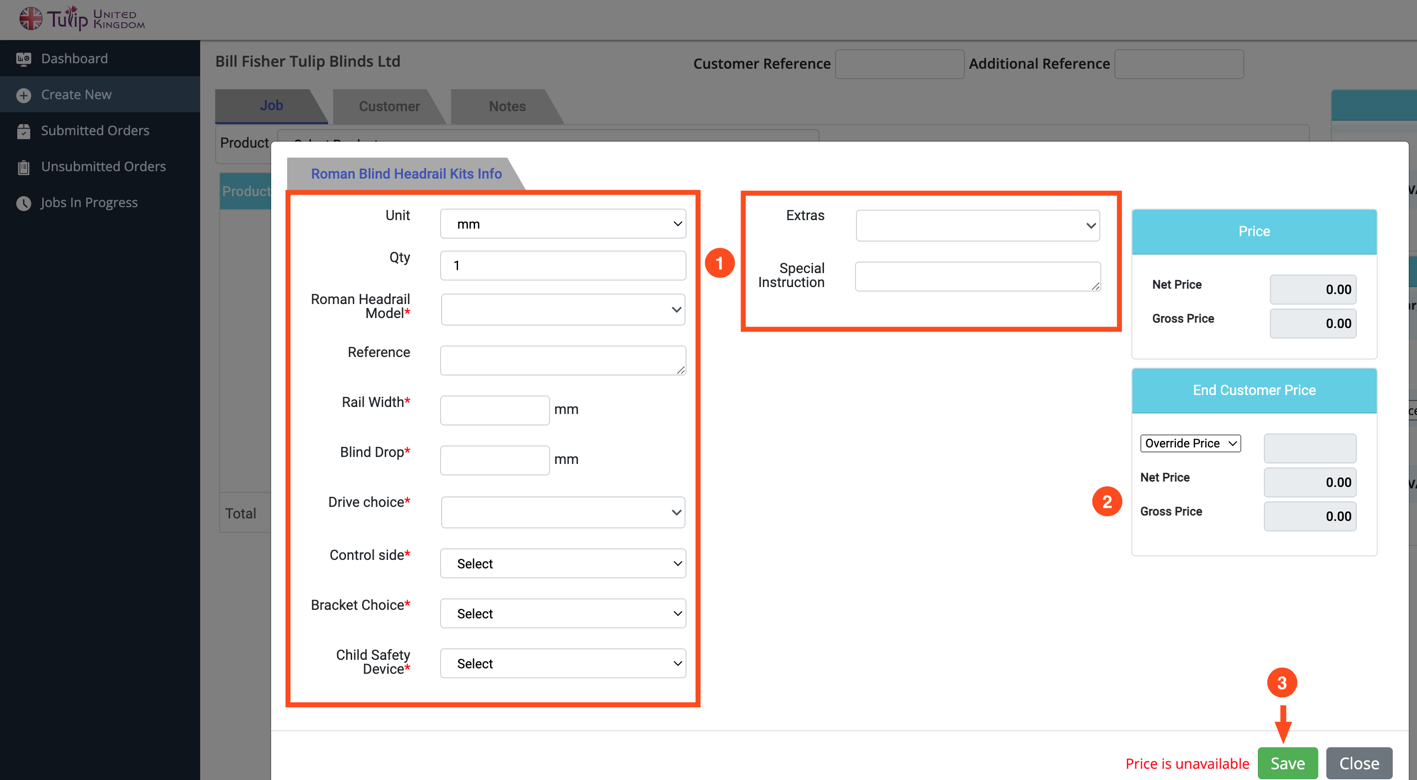
In this example, an order is placed for Roman Blind Headrail Kits. You can specify you measuring unit (mm, cm, m, inches), specify the quantity (if the same spec), as well as the model, dimensions, options and any job reference or special instructions (1). Anything with a red asterisks (*) is required to be filled out in order to proceed. You may also be prompted to fill in additional fields/information based on previous selections, which may dynamically populate, depending on previous selections.
On the right-hand side of the window, the cost of the rail will be shown and you can even see the price you charge your own customers (once your markup is defined). (2)
Once you are happy to proceed, click the green "Save" button.
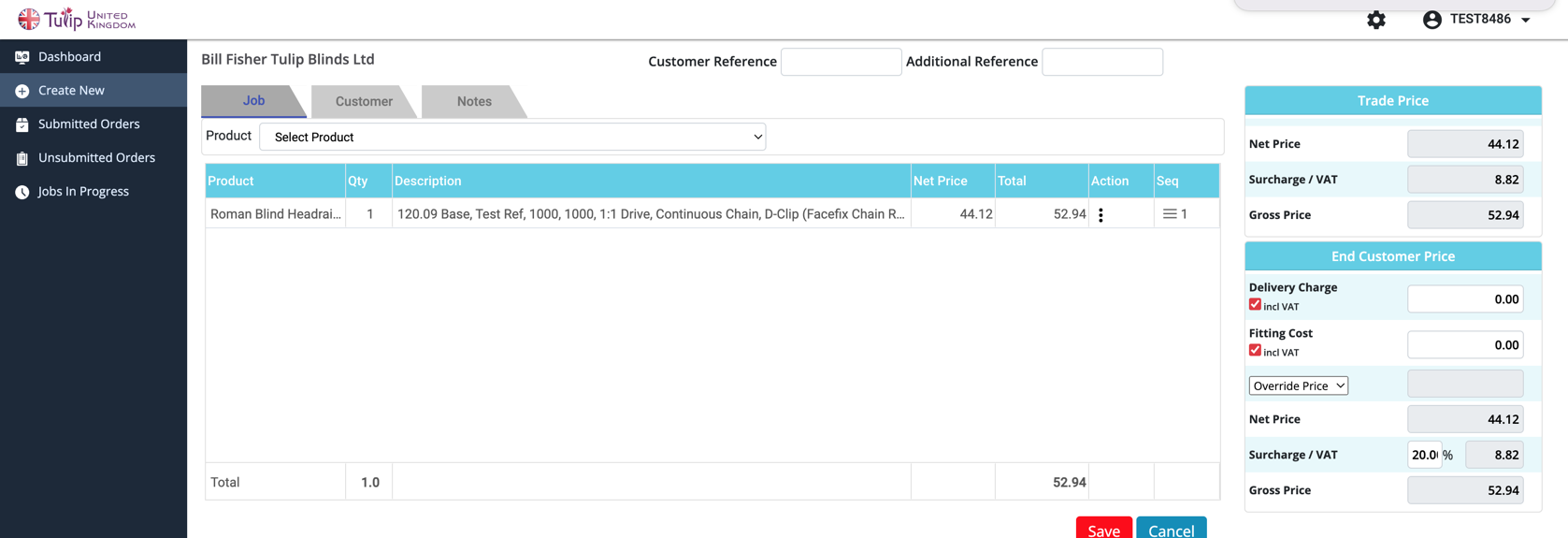
Once your product is added, you will see the product added below.
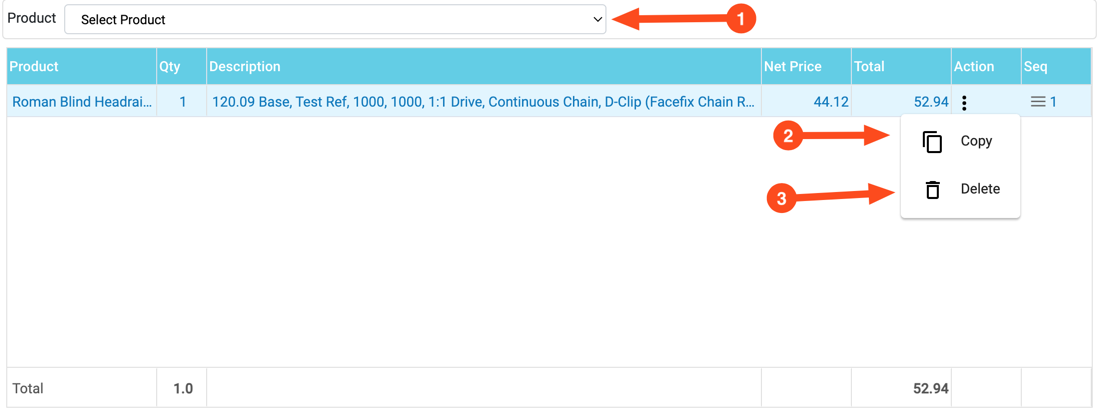
You can add another product, by selecting the product drop-down and repeating the similar process (1)
or
If you want the same product (with the plan to make slight amendments), you can click the three dots under ""Action" and choose "Copy" to create a copy of that product. (2) To edit the copied product, click the description of that product and this will populate the selected options for that product. Simply edit the options required and click the green "save button. Repeat if necessary for multiple similar orders.
or
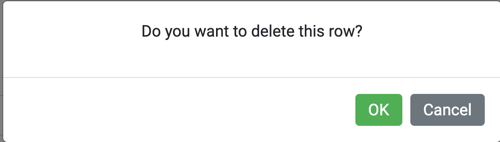
If you wish to delete an item, you can click the three dots under ""Action" and choose "Delete" to delete of that product. (3) You will be prompted to delete the selected row, click the green "Ok' button to confirm.
When you are ready to submit your order, click the green "Submit" button. If you do not see the green "Submit" button, click the green "Save" button first to make sure your previous product options are saved. The "submit" button should then appear for order submission.
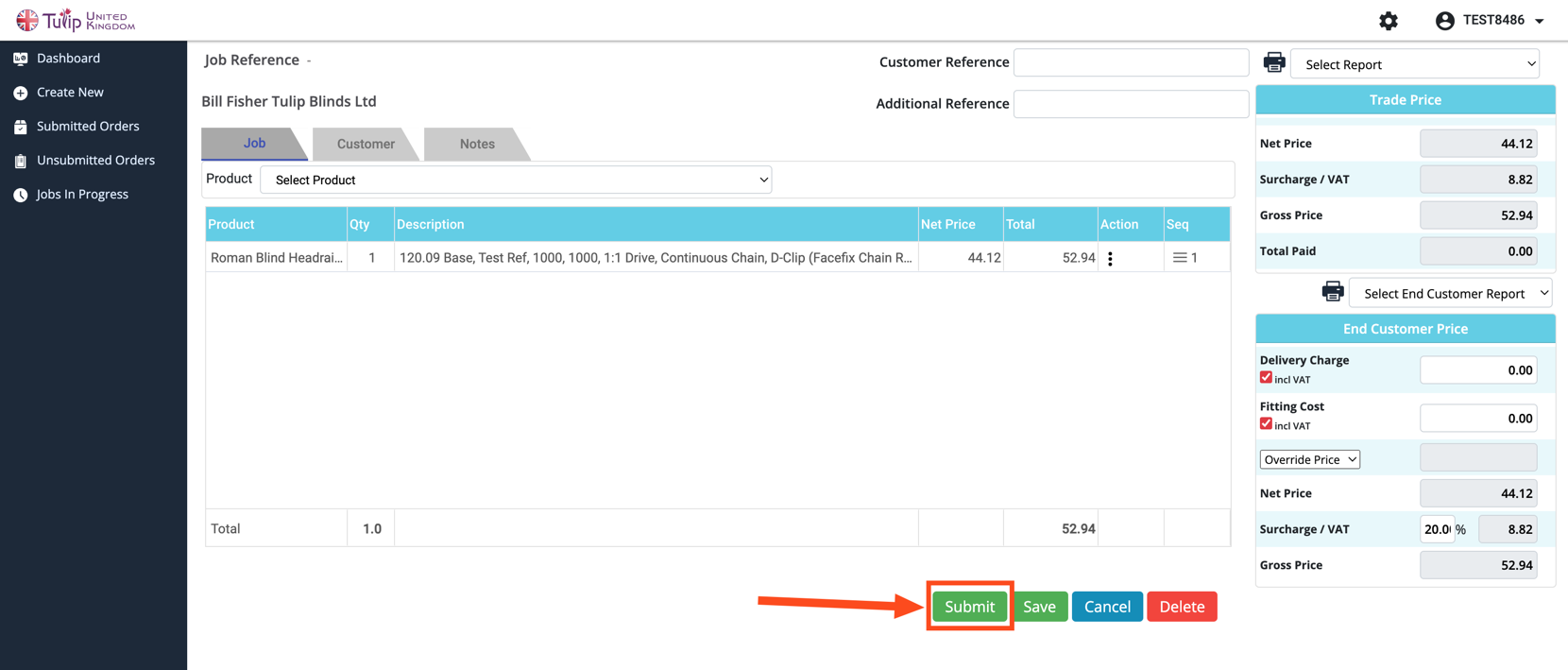
Note: It is recommended that you double check the order for mistakes before submission as normally orders are processed soon after order submission. Once orders are processed, it will not be possible to correct any errors and a new blind/rail may be required at the buyers expense.
Was this article helpful?
That’s Great!
Thank you for your feedback
Sorry! We couldn't be helpful
Thank you for your feedback
Feedback sent
We appreciate your effort and will try to fix the article